Zero Line FPV Controls
Typical FPV kamikaze bindings for keyboard, touch, and gamepad—plus where to check Settings.
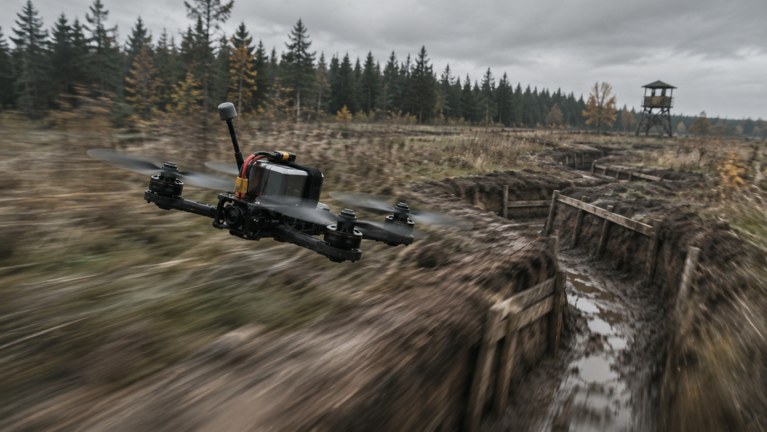
Zero Line is an FPV first-person drone combat game. You fly with the same core ideas used across Roblox kamikaze drone experiences: strafe in the horizontal plane, rise and descend on dedicated inputs, look with the camera, fire at enemy drones, and commit kamikaze strikes into players, trucks, or helicopters. Vision modules—night vision and thermal—usually sit on a toggle once unlocked. Exact on-screen labels can change between patches, so treat the layouts below as the typical Zero Line / FPV kamikaze patterns players use, then confirm anything missing inside Settings.
If you are brand new, finish the getting started checklist first, then return here before a serious session. Flight technique that depends on these binds is covered in how to fly FPV, and module unlocks that enable thermal or night vision are explained in drone upgrades.
PC keyboard and mouse (typical pattern)
Most PC pilots in this genre settle on a WASD plus mouse scheme:
- W / A / S / D — forward, left, back, right relative to the camera.
- Mouse — look / aim the FPV camera; small corrections matter more than large flicks during a dive.
- E (or equivalent rise key) — climb.
- Q (or equivalent descend key) — lose altitude.
- Left mouse / fire bind — shoot enemy drones when you are in a gunfight instead of a pure kamikaze run.
- Kamikaze / strike confirm — commit the dive into a soft target; some builds use the same fire path, others expose a separate prompt—check Settings if both exist.
- T (common thermal / NV toggle) — cycle night vision or thermal once those cameras are owned.
- Menu / Settings — rebind, sensitivity, and the FEEDBACK/BUG entry.
Sensitivity should stay low enough that a truck-sized target stays in frame during the final second of a dive. If your camera feels like it overshoots every correction, lower look sensitivity before buying more propeller upgrades. Rise and descend keys are easy to forget on mobile-first habits; practice climbing over a ridge, then descending into a valley without touching the fire button.
Mobile and tablet touch controls
On phones and tablets, Zero Line follows the usual dual-stick FPV layout: a left stick or virtual pad for move and altitude, a right stick or drag zone for look, and separate buttons for fire, kamikaze, and vision toggles. Because screen space is limited, Pushpin may nest advanced options under Settings rather than pinning every bind on the HUD.
Tips that help on touch:
- Play in landscape with a stable grip; FPV dives punish portrait play.
- Increase dead zones slightly if your thumbs drift and cause unwanted yaw.
- Keep the thermal / night vision button reachable with the same thumb that looks, so you can flash vision mid-approach without stopping the stick.
- When a bind seems missing after an update, open Settings before assuming the feature is locked—UI labels move more often than the underlying actions.
Tablet players get more HUD room than phones. Use that space to watch battery and mission trackers while you fly; running dry mid-dive is still the top beginner failure on every platform.
Console gamepad patterns
Console support uses standard gamepad axes: left stick for planar move, right stick for look, triggers or face buttons for rise/descend and fire, and a bumper or face button for vision toggles. Kamikaze may share the fire trigger or sit on a confirm prompt when you are lined up on a valid target.
Calibrate stick dead zones if micro-corrections feel sticky. FPV combat rewards smooth pitch into a dive more than twitch aiming. If your drone constantly rolls off axis, lower look sensitivity one step at a time until a straight kamikaze run stays centered on a truck silhouette.
Vision toggles, Settings, and FEEDBACK/BUG
Night vision and thermal cameras are upgrade unlocks, not default toys. Until you buy them, the toggle may appear greyed out or simply do nothing—that is expected. After purchase, the common pattern is a single key or button that cycles modes while you are in the drone. Use thermal to pick heat from players and vehicles; use night vision when the map is dark but you still need terrain detail. Full module advice lives on drone upgrades.
Always open Settings after a patch. Bindings, sensitivity, and the FEEDBACK/BUG channel live there. If a control stopped working, a mission failed to credit, or a toggle label looks wrong, send a report instead of grinding blind. Pair Settings checks with the updates hub so you know whether a patch intentionally remapped inputs.
Practice drills that lock the binds
Spend one short session on drills before you chase weekly missions:
- Altitude box — climb, strafe a square, descend, repeat without firing.
- Look-only pass — fly a gentle line past a parked truck while only using mouse or right stick to keep it framed.
- Fire then dive — tag an enemy drone once, then decide whether to disengage or commit kamikaze.
- Vision flash — with modules owned, toggle thermal on for two seconds, off for two, while holding a steady hover.
These drills make the how to fly FPV tactics usable. Without muscle memory for rise, descend, and look, approach angles fall apart the moment an enemy drone shoots back.
Common control mistakes
- Treating Zero Line like a third-person shooter and ignoring altitude keys.
- Maxing look sensitivity so kamikaze finals blur past the target.
- Forgetting to re-check Settings after switching from PC to mobile.
- Buying camo before learning which finger hits the vision toggle.
- Holding fire through an empty battery warning instead of bailing to shop.
When controls feel solid, push into target priority and battery management on the flight guide, then spend cash using the order in getting started and drone upgrades. If you compare drones later, keep the same sensitivity across airframes so the drones tier list differences are about stats, not your hands.
Quick reference
| Action | Typical PC | Typical touch / pad idea |
|---|---|---|
| Move | WASD | Left stick / move pad |
| Look | Mouse | Right stick / drag |
| Rise / descend | E / Q pattern | Dedicated buttons or stick axis |
| Fire | LMB / fire bind | Fire button / trigger |
| Kamikaze | Fire or confirm | Confirm / strike button |
| Thermal / NV | Toggle (often T) | Vision button |
| Menus | Settings | Settings gear |
Remember: this table describes expected FPV kamikaze patterns for Zero Line-style play. If your build differs, Settings is the source of truth—rebind there, then come back to the wiki for flight and upgrade strategy.
Frequently Asked Questions
Quick answers for Zero Line pilots.
What are the default PC controls in Zero Line?
Expect WASD to move, mouse to look, rise/descend on keys such as E/Q, fire on click, and a toggle (often T) for thermal or night vision once unlocked. Confirm labels in Settings.
How do I enable thermal or night vision?
Buy the night vision or thermal camera upgrades first, then use the in-drone vision toggle. If nothing happens, open Settings to verify the bind.
Where do I change sensitivity or report a bad bind?
Open Settings. Sensitivity and rebinds live there, along with the FEEDBACK/BUG option for Pushpin Gaming.
Do mobile and console use the same actions as PC?
Yes—the actions match (move, look, rise, fire, kamikaze, vision). Only the input devices change. Check Settings after switching platforms.
Why does my vision toggle do nothing?
You probably have not unlocked night vision or thermal yet, or the bind moved after a patch. Upgrade the module, then re-check Settings.